 User Manual
Timora – time, projects, resources and capacity
This manual explains how to work with Timora: from your first sign-in through to analysing project time, capacity and qualifications. It is written for everyone who uses the application – employees, project managers, HR and administrators.
- Product
- Timora
- Document version
- 1.0
- Date
- October 2026
- Operating models
- SaaS & On-Premise
Table of Contents
The manual is organised by area of work. Chapters 4 to 9 are relevant to everyone who uses Timora; chapters 10 to 14 are aimed primarily at project management, HR and administration.
- CHAPTER 1 About This Manual Audience, structure, conventions and how plan-dependent features are marked.
- CHAPTER 2 Timora at a Glance What the application does, who uses it, operating models and system requirements.
- CHAPTER 3 Plans and Feature Scope Standard, Business and Enterprise compared, plus the optional add-on packages.
- CHAPTER 4 Getting Started Signing in, changing your initial password, the interface and personal preferences.
- CHAPTER 5 Time Tracking Weekly view, booking hours, entry types, validation rules and booking deadlines.
- CHAPTER 6 Projects and Tasks Creating projects and tasks, hour limits, project access and project skills.
- CHAPTER 7 Absences and Vacation Vacation balance, requests, approvals, sick leave and other absences.
- CHAPTER 8 Overtime and Payouts How the overtime balance is calculated and how overtime or vacation is paid out.
- CHAPTER 9 Reports and Analysis Project time, time investment by entry type, and export to Excel, PDF and print.
- CHAPTER 10 Capacity and Resource Planning FTE planning, heatmaps, target/planned/actual comparison and free capacity. Business
- CHAPTER 11 Profiles and Skills Skill database, technical profiles, certifications and skill search. Enterprise
- CHAPTER 12 Organization and Master Data Maintaining users, cost centers, customers and holidays.
- CHAPTER 13 Administration Roles, permissions, entry types, system settings, license and company logo.
- CHAPTER 14 Roles and Permissions Reference of every permission and the areas it unlocks.
- CHAPTER 15 FAQ and Troubleshooting Common messages, what causes them and what to do about them.
- CHAPTER 16 Glossary Timora terminology, from FTE to target availability.
About This Manual
This manual describes how to work with Timora day to day. It is written as a reference: each chapter covers one self-contained area of work and can be read independently of the others.
1.1 Who this manual is for
The manual addresses four groups of users:
- Employees
- Record working time, request vacation and review their own overtime and vacation balance. Chapters 4, 5, 7, 8 and 9 are the relevant ones.
- Project managers
- Maintain projects and tasks, control hour budgets and plan capacity. Chapters 6 and 10 apply in addition.
- HR and line managers
- Maintain absences, approve vacation, manage users and payouts. Chapters 7, 8, 11 and 12 apply in addition.
- Administrators
- Own roles, permissions, master data, system settings and the license. Chapters 13 and 14 apply in addition.
1.2 How plan-dependent features are marked
Timora is offered in the plans Standard, Business and Enterprise. Some areas are not part of every plan but can be booked as an add-on package. So that you can see immediately whether a feature is available in your installation, every plan-dependent chapter and section is marked directly on its heading:
| Marking | Meaning |
|---|---|
| All plans | Part of the core platform. Included in Standard, Business and Enterprise. Sections with no marking at all are core platform as well. |
| Business | Included from the Business plan upwards. Available as an add-on package in Standard. |
| Enterprise | Included from the Enterprise plan upwards. Available as an add-on package in Standard and Business. |
| Add-on | Available only with the corresponding add-on package, regardless of the plan. |
The full comparison is in Chapter 3, Plans and Feature Scope. To see which packages are enabled for your installation, open Settings › System Settings › License (see Section 13.5).
Features outside your plan
Features that are not part of your plan are not shown in Timora at all – the corresponding menu entries are missing. If you open such a page directly by its address, Timora displays “Not included in your plan”. Contact your administrator in that case.
1.3 Conventions
- Menu › Submenu
- A navigation path in the Timora main menu.
- Button
- The label of a button, an input field or a selection.
- “Message text”
- A message displayed by Timora.
- Numbered list
- Steps to be carried out in the order given.
Language of the interface
The Timora interface is available in English and Spanish. This manual uses the English labels throughout. If you work with the Spanish interface, use the Spanish edition of this manual, which quotes the Spanish labels. How to switch languages is described in Section 4.3.
1.4 Validity
This manual describes Timora as of October 2026. Because Timora is developed continuously, individual labels and views may differ in your installation. What is binding for you are the services agreed for your organization and the settings and permissions configured in your installation.
Amounts, limits and default values mentioned here – such as the number of licensed users or booking deadlines – are configurable per installation. The values quoted in this manual are examples or delivery defaults.
Timora at a Glance
Timora is a web application for project-oriented organizations. It connects time tracking, project and task management, absences, overtime, reporting and – depending on the plan – capacity planning and qualification profiles on a single shared set of data.
2.1 What Timora does
All areas work on the same data. A booked hour therefore feeds the project analysis, the overtime balance and – with capacity planning booked – the planned/actual comparison of utilisation at the same time:
- Time tracking: record working time per project, task and entry type (Chapter 5).
- Projects and tasks: maintain project structure, customer assignment, hour limits and project access (Chapter 6).
- Absences: request and approve vacation, record sick leave and other absences, review the vacation balance (Chapter 7).
- Overtime: monthly target/actual comparison, payout of overtime and vacation days (Chapter 8).
- Reporting: project time reports and time investment by entry type, exported to Excel and PDF (Chapter 9).
- Capacity and resource planning: planning in FTE, heatmaps, free capacity and overallocation Business (Chapter 10).
- Profiles and skills: skill database, technical profiles, certifications and skill search Enterprise (Chapter 11).
2.2 Typical division of responsibilities
Which menu entries you see depends on your permissions. Timora hides any area you are not permitted to use. The overview below shows a common split; the actual assignment is defined by your administrator (see Chapter 14).
| User group | Main activities in Timora |
|---|---|
| Employees | Book hours, request vacation, review their own vacation and overtime balance, analyse their own project time |
| Line managers / supervisors | Approve or reject vacation requests, review absences and time of their team |
| Project managers | Maintain projects and tasks, set hour limits, grant project access, plan capacity, analyse project reports |
| HR | Maintain users and working conditions, record absences, approve vacation, create payouts |
| Administrators | Roles and permissions, entry types, holidays, system settings, license and company logo |
2.3 Operating models
Timora is delivered in two operating models. The functional scope of the interface is identical in both; they differ in how the system is operated and who is responsible for it:
| Model | Operation | Characteristics |
|---|---|---|
| SaaS | Operated by the vendor | Fast rollout, updates included, low internal operating effort, scales with the team |
| On-Premise | Operated on your own infrastructure | Full control over the data, operation inside the corporate network, integration with internal systems, perpetual licensing |
Which model is in use is shown under Settings › System Settings › License in the field Deployment.
2.4 System requirements
Timora is a web application and requires no local installation. To use it you need:
- a current web browser in one of its two latest versions (Google Chrome, Microsoft Edge, Mozilla Firefox or Apple Safari),
- JavaScript and cookies enabled, which the sign-in requires,
- a network connection to your organization's Timora installation,
- the credentials provided by your administrator.
The interface is designed for desktop and mobile devices. On mobile, the main menu is replaced by a navigation bar at the bottom of the screen; tables are shown as cards and can be swiped sideways.
Plans and Feature Scope
Timora consists of a core platform, included in full in every plan, and two functional areas that are provided depending on the plan or as an add-on package. This chapter is the reference for every plan marking used in the rest of the manual.
3.1 The core platform All plans
The core platform is included unchanged in Standard, Business and Enterprise and covers:
- time tracking by project, task and entry type
- project and task management including hour limits and project access
- absences, vacation requests, approvals and the vacation balance
- the overtime balance and payouts of overtime or vacation days
- the reports Project Time, Project Time Investment Report and Overtime, with export to Excel, PDF and print
- user management, cost centers, customers and holidays
- roles, permissions, hours entry types and system settings
3.2 Plan comparison
The table below shows which functional areas are part of which plan. Included means included in the plan at no extra cost; Add-on means available for an additional fee.
| Functional area | Standard | Business | Enterprise |
|---|---|---|---|
| Time tracking (Ch. 5) | Included | Included | Included |
| Projects and tasks (Ch. 6) | Included | Included | Included |
| Absences and vacation (Ch. 7) | Included | Included | Included |
| Overtime and payouts (Ch. 8) | Included | Included | Included |
| Reports and exports (Ch. 9) | Included | Included | Included |
| Organization, master data, administration (Ch. 12, 13) | Included | Included | Included |
| Project Capacity & Resource Planning (Ch. 10) | Add-on | Included | Included |
| Skill Database & Technical Profiles (Ch. 11) | Add-on | Add-on | Included |
| Custom company logo (Sec. 13.6) | – | Included | Included |
3.3 The add-on packages in detail
Project Capacity & Resource Planning Business
This package extends Timora with forward-looking planning of capacity and resources. It unlocks:
- Projects › Capacity Planning – planning in FTE per project, person and period
- Reports › Project Capacity Report – target, planned and actual capacity with heatmap, table and detail view
- Reports › Resource Planning Report – availability, vacation, project allocation, free capacity and overallocation
- the project action Plan Capacities in project management
Skill Database & Technical Profiles Enterprise
This package makes qualifications across the organization visible and searchable. It unlocks:
- Settings › Skill Database – maintaining skill categories, skills, languages and professional roles
- technical profiles per person with skills, languages, roles, certifications and project experience, including PDF export
- Reports › Skill Search – searching for people by skill, with a match score
- the project action Edit Project Skills and the entry My Profile in the user menu
Custom company logo Business
With this package your company logo replaces the Timora logo in the top bar, on the sign-in page and in all PDF and Excel reports. It is maintained under Settings › System Settings › Personalization (see Section 13.6).
3.4 User count and support
Besides the functional scope, the plans differ in the number of active users and the level of support. Your contract is what is binding; the values stored for your installation are shown on the License tab.
| Attribute | Standard | Business | Enterprise |
|---|---|---|---|
| Active users | up to 25 | up to 250 | more than 250 |
| Support | by email | additionally by phone | additionally a dedicated contact |
| Response time | up to 2 business days | up to 1 business day | per agreed service level |
| Updates and security patches | Included | Included | Included |
User limit reached
Once the licensed number of active users is exhausted, no further user can be activated. In user management Timora then reports: “The licensed number of active users is reached. Deactivate a user or upgrade the plan.” Set a user who is no longer needed to Inactive, or upgrade your plan.
Getting Started
This chapter takes you through your first sign-in, explains how the interface is organised and shows how to adjust your personal settings.
4.1 Signing in
Your administrator provides the address of your Timora installation together with your email address and an initial password.
- Open the address of your Timora installation in a browser. The sign-in page “Sign in to Timora” appears.
- Enter your work email address under Email.
- Enter your password under Password.
- Click Sign in.
After a successful sign-in, Timora opens time tracking (Hours Booking) as the start page.
If your organization uses single sign-on, the sign-in page shows the button Sign in with … instead of, or in addition to, the fields above. In that case use your usual company credentials.
Sign-in not successful
With incorrect credentials Timora reports: “Login was not successful. Please check your email and password.” Check the spelling and your keyboard layout. A forgotten password can only be reset by your administrator (see Section 12.1).
Changing the initial password
After your first sign-in, and after a reset by the administrator, Timora asks you to set your own password. The page “Change password” appears automatically and cannot be skipped.
- Enter the password you were given under Current password.
- Enter your new password under New password. Show Password Policy displays the rules that apply.
- Repeat it under Confirm new password.
- Click Change password.
The password rules are defined by your administrator (see Section 13.4). They cover a minimum and maximum length as well as how many character groups – lowercase letters, uppercase letters, digits and special characters – have to be used. Timora validates your entry and reports any deviation directly at the field.
4.2 The interface
The interface is organised the same way everywhere. At the top is the header with the logo, the main menu, notifications and the user menu; below it is the working area.
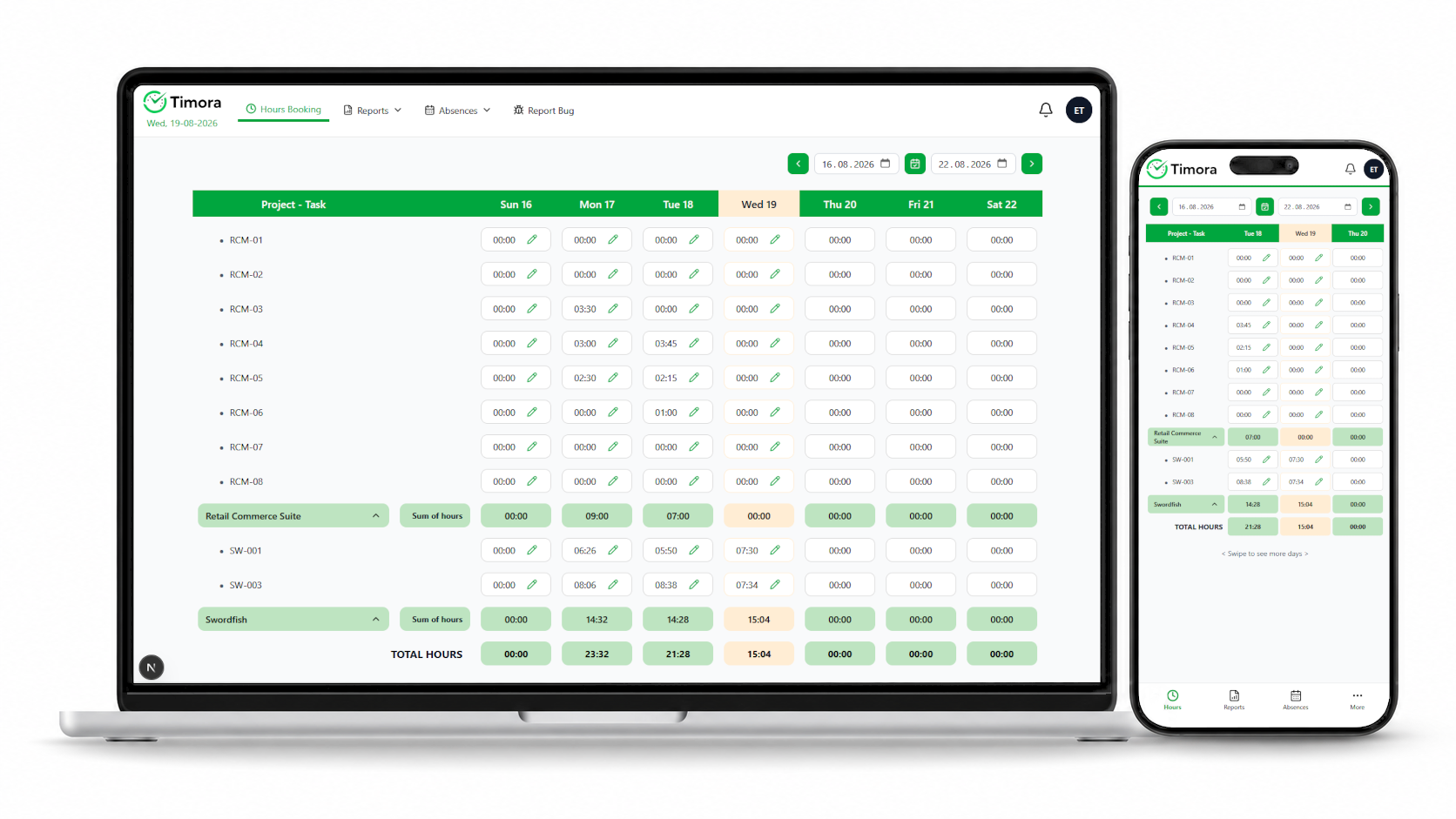
Main menu
The main menu divides Timora into seven areas. Submenus open when you click the area:
| Menu | Contents | Chapter |
|---|---|---|
| Hours Booking | Time tracking in the weekly view | 5 |
| Projects | Project Management, Task Management, Capacity Planning Business | 6, 10 |
| Organization | User Management, Cost Centers | 12 |
| Master Data | Holiday Management, Customer Management | 12 |
| Reports | Project Time, Project Time Investment, Overtime; Project Capacity and Resource Planning Business; Skill Search Enterprise | 9, 10, 11 |
| Absences | Absence Overview, Vacation Approvals, Payouts | 7, 8 |
| Settings | Roles, Permissions, Hours Entry Types, System Settings; Skill Database Enterprise | 13 |
Visibility of menu entries
Timora only shows menu entries you are permitted to use and that belong to your plan. If an entry described in this manual is missing, it is either because a permission is missing (Chapter 14) or because the area is not part of your plan (Chapter 3).
Notifications
The bell icon in the header opens your notifications, for example about vacation requests awaiting your decision or reminders about booking and vacation deadlines. If there is nothing pending, “No notifications exist” is displayed. Whether notifications are sent at all is controlled by your administrator (see Section 13.4).
User menu
Your initials on the right of the header open the user menu with the following entries:
- My Profile Enterprise
- Opens your technical profile with skills, languages, roles, certifications and project experience (see Section 11.2). This entry belongs to the Skill Database & Technical Profiles package.
- Preferences
- Personal settings: name, email address, language and password change (see Section 4.3).
- Logout
- Signs you out of Timora. On shared devices, always sign out explicitly.
Working with lists and filters
Overview pages follow a consistent pattern in Timora. Depending on the area, the following controls are available:
- Filter area: narrows the view by period, project, person, status or search term. In areas with larger data volumes – absences, overtime or reports – the data is only loaded after you click Load. Until then a prompt asks you to choose the filter values and click Load.
- Clear Filters: resets all filters.
- The Action column: opens the action menu of a row with the actions permitted there, for example Edit or Delete. If no action is available, “No actions available” is shown.
- + Add …: creates a new record.
- Export: available in reports; produces Excel, PDF or print output (see Section 9.5).
Deletions are always confirmed through a prompt that names the record concerned. Successful changes are confirmed by a short message at the edge of the screen.
Change history
Fields with a validity period – such as working time or hour limits – offer the action Show history. It opens the change history with the columns Valid from, Changed by and Changed at. The entry currently in effect is marked Current; values taken over from a data migration are marked Migration.
4.3 Personal preferences
Under User menu › Preferences you maintain your own details. The dialog has three areas:
- USER DATA
- First Name and Last Name – the name shown for you in Timora.
- ACCOUNT SETTINGS
- Email as your sign-in identifier and Language for the interface language (English or Spanish).
- PASSWORD
- Change Password changes your password. With single sign-on the button points to your identity provider instead.
- Open User menu › Preferences.
- Change the details you want to adjust.
- Click Save. Timora confirms with “Preferences saved successfully”.
Switching the language takes effect immediately across the whole interface. The language used for newly created users is defined by the administrator (see Section 13.4).
Reporting a problem
The menu entry Report Bug at the end of the main menu takes you to the vendor's ticket system so you can report a problem. Have the following ready: the area concerned, the time it happened, the steps you took and – if there was one – the exact wording of the error message.
Time Tracking
Time tracking is the central working area for everyone. Under Hours Booking you record your working time per project, task and entry type. The hours booked here are the basis for project analysis, the overtime balance and the capacity evaluation.
5.1 The weekly view
Hours Booking is the start page after you sign in. It shows a table with the rows Project - Task and one column per day of the selected period. The cells hold the booked hours; the column Sum of hours and the row TOTAL HOURS show the totals.
You control the period with the date selector above the table:
- Start Date / End Date
- Beginning and end of the displayed period.
- Previous week / Next week
- Moves one week backwards or forwards.
- Reset to Today
- Jumps back to the current week.
Further Tasks and Further Projects add rows for tasks and projects that are not yet in the table. On mobile devices the table can be swiped sideways; the hint “Swipe to see more days” points this out.
5.2 Booking hours
Hours are always booked through the “Project Time” dialog, for one combination of date, project and task. Within a single day you can create several individual entries with different entry types.
- In the weekly view, select the cell for the day you want in the row of the project and task. The “Project Time” dialog opens with Date, Project and Task already filled in.
- Under HOURS ENTRIES, click + Add Entry.
- Enter the duration under Hours in hours and minutes, for example
03:30for three and a half hours. - Choose the appropriate entry type under Type (see Section 5.3).
- Describe the work you did under Description. This field is mandatory.
- Repeat steps 2 to 5 for further entries on the same day. The TOTAL row shows the daily total for this task.
- Click Save. Timora confirms with “Hours entries saved successfully”.
Delete Entry in the Action column removes a single entry; Cancel discards all changes made in the dialog. To change an existing booking, open the cell again (Edit Entry) and adjust the values.
Validation on save
Timora validates every booking before saving. The following messages prevent saving until the entry is corrected:
| Message | Cause and remedy |
|---|---|
| “Time cannot be negative” | The duration is negative. Enter a positive value. |
| “Time must be greater than 00:00” | The duration is empty or zero. Enter a duration or delete the entry. |
| “Type is required” | No entry type was selected. |
| “Description is required” | The description of the work is missing. |
| “Total time cannot exceed 24 hours per day” | The total of all bookings for one day exceeds 24 hours. Correct the duration. |
For unusually high daily totals Timora asks for confirmation: “The total hours for this task and date are …. That's quite a lot. Please confirm this is correct.” Confirm with Confirm if the booking is correct.
5.3 Entry types
The entry type (Type) describes the kind of work and is the basis for the Project Time Investment Report (Section 9.3). As delivered, the following are available:
| Entry type | Use |
|---|---|
| Implementation | Implementation and development |
| Technical Review | Technical review, for example a code review |
| Functional Review | Functional review and acceptance |
| Documentation | Documentation |
| Testing | Testing and quality assurance |
| Deployment | Deployment and commissioning |
| Other | Any other activity |
The list is configurable: your administrator can create your own entry types under Settings › Hours Entry Types and deactivate the ones you do not need (see Section 13.3). If in doubt, ask which entry type your organization expects for which activity – consistent use is what makes the analysis meaningful.
5.4 Booking deadlines
Time cannot be recorded or changed retroactively without limit. Timora applies three rules. If any of them prevents editing, the cell in the weekly view is locked:
- No future: days after today cannot be booked.
- Retroactive window in days: bookings are only possible within the number of days before today stored for you (field Days Enabled Past in your user record).
- Month closing: days in an earlier month can additionally only be edited during the first days of the new month. The decisive field is Days Enabled Past Month: if it is set to
3, for example, bookings from the previous month can still be changed on the 1st and 2nd of the new month, but no longer from the 3rd onwards.
Both values are set per user by the administrator (see Section 12.1). If time has to be added after the deadline has passed, contact your administrator or HR.
Record time promptly
Book your hours daily if you can. Because of the month closing, late entries for the previous month are only possible for a few days, and unrecorded time distorts both the project analysis and your overtime balance.
5.5 Hour limits on tasks
A task can carry an hour limit (Max Hours). Once the limit is reached, no further bookings are possible for that task. In that case contact the project manager: they can raise the limit – with a mandatory justification that is recorded in the change history (see Section 6.3).
Projects and Tasks
Projects and tasks form the structure that time is booked against. This chapter is aimed at project managers and everyone who maintains project structures. The areas described here require the corresponding permissions.
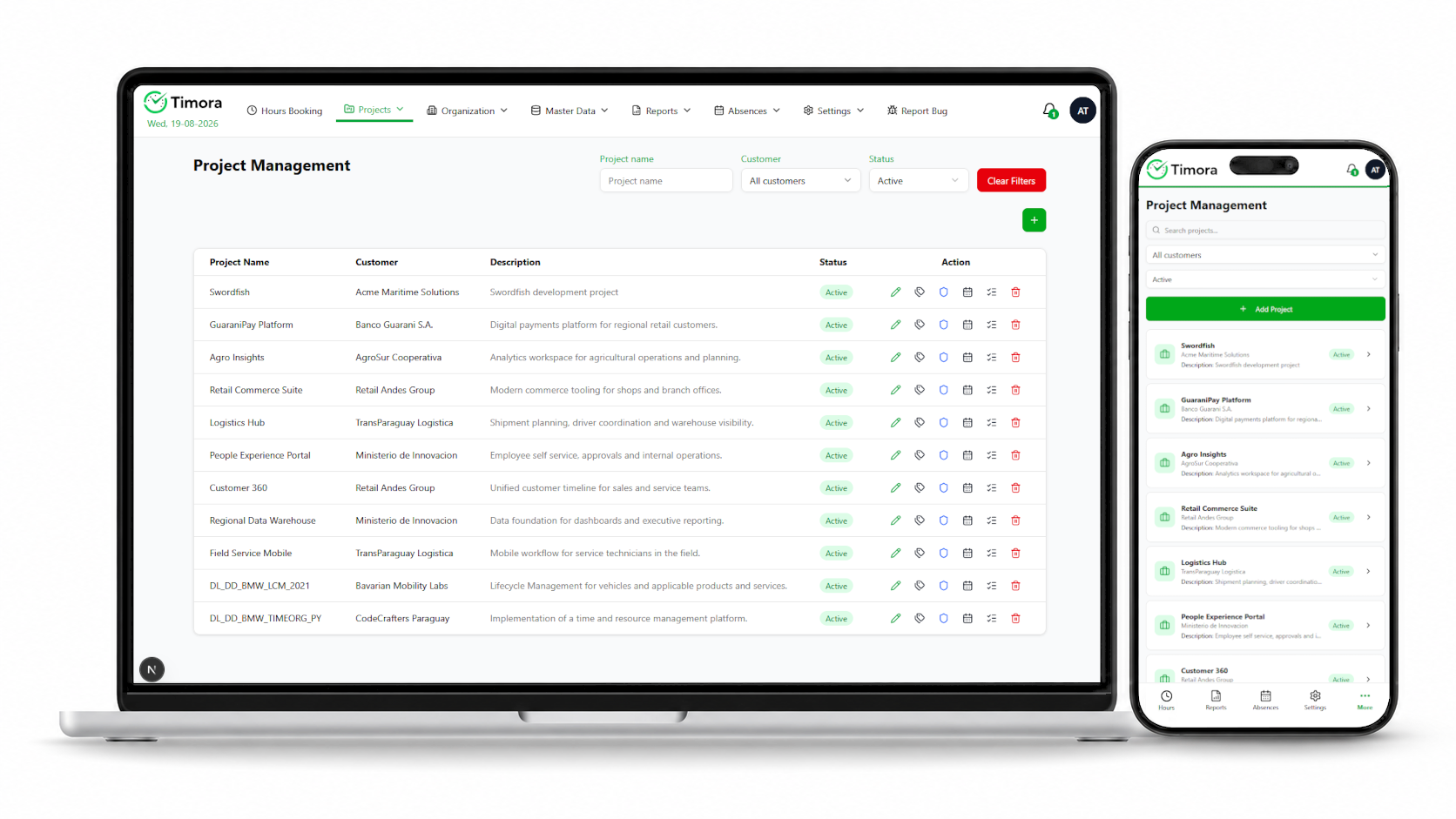
6.1 Managing projects
Project management is reached through Projects › Project Management. The list shows Project Name, Description, Customer and Status. You can filter by project name, status (All, Active, Finished) and customer.
Creating a project
- Click + Add Project.
- Enter the Project Name.
- Choose the Status: Active for running projects, Finished for completed ones.
- Assign the customer under Customer. For internal work choose No customer. Customers are maintained beforehand under Master Data › Customer Management (see Section 12.3).
- Add a short Description.
- Click Save.
Actions per project
The Action column opens the action menu of a project:
- Edit Project
- Change name, status, customer and description.
- Edit Tasks
- Switches to task management for this project (see Section 6.3).
- Edit Project Permissions
- Defines who has access to the project (see Section 6.2).
- Plan Capacities Business
- Opens capacity planning for this project (see Section 10.2).
- Edit Project Skills Enterprise
- Assigns the required skills to the project (see Section 6.4).
- Delete Project
- Deletes the project after a confirmation prompt.
Do not delete completed projects
Set finished projects to the status Finished rather than deleting them. That keeps the booked hours available for analysis and for evidence. Deleting is intended only for projects created by mistake.
6.2 Granting project access
Edit Project Permissions controls who works on a project. The dialog lists the assigned people with their project role.
- In the action menu of the project, open Edit Project Permissions.
- Choose the person under Select User and click + Add User.
- Choose the project role in the Role column: Admin for project ownership, Member for collaboration.
- Use Remove user to remove people who are no longer involved.
- Click Save.
The project role applies within this project only and is independent of the system-wide roles described in Chapter 14.
6.3 Managing tasks
Task management is reached through Projects › Task Management or directly from the action menu of a project. First select the project under Project name – without a selection the prompt “Please select a project” appears.
Creating a task
- Click + Add Task.
- Enter Task Name and Description.
- Set the Status to Active or Finished.
- Optionally set Start Date and End Date. The end date must not be before the start date.
- If required, set an hour limit in the Hour Limit area (see below).
- Click Save.
Setting and changing the hour limit
The field Max Hours caps the hours that can be booked on a task. The following applies:
- An empty field means no limit.
- The value must be greater than 0, otherwise Timora reports: “The max hours must be greater than 0. Leave the field empty for no limit.”
- The limit must not be lowered below the hours already booked. These are shown in the field Hours already booked.
- Whenever an existing limit is changed, a justification is mandatory in the field Justification of the change.
Max hours history shows all previous limits with the justification and the time of the change. Every budget adjustment is therefore documented and traceable.
Interaction with time tracking
Only tasks with the status Active are available for booking in time tracking. Once a task reaches its hour limit, employees can no longer book against it – raise the limit or create a new task.
6.4 Project skills Enterprise
Plan-dependent feature
This section describes a feature of the Skill Database & Technical Profiles package. It is included from the Enterprise plan and can be booked as an add-on in Standard and Business. Without this package the action Edit Project Skills is not available.
Edit Project Skills assigns the skills used in a project. This serves two purposes: it documents the technologies used in the project, and it appears as project experience in the technical profiles of the people involved (see Section 11.2). The skill search also evaluates these entries as relevant project experience.
- In the action menu of the project, open Edit Project Skills.
- Choose a skill under Select Skill and click + Add Skill.
- Repeat for all relevant skills. Remove skill removes an entry.
- Click Save.
The selection list is fed by the skill database. If a skill is missing, it has to be created there first (see Section 11.1).
Absences and Vacation
Under Absences you manage vacation, sick leave and other absences. Employees request their vacation here and review their vacation balance; line managers and HR decide on requests and record absences on behalf of others.
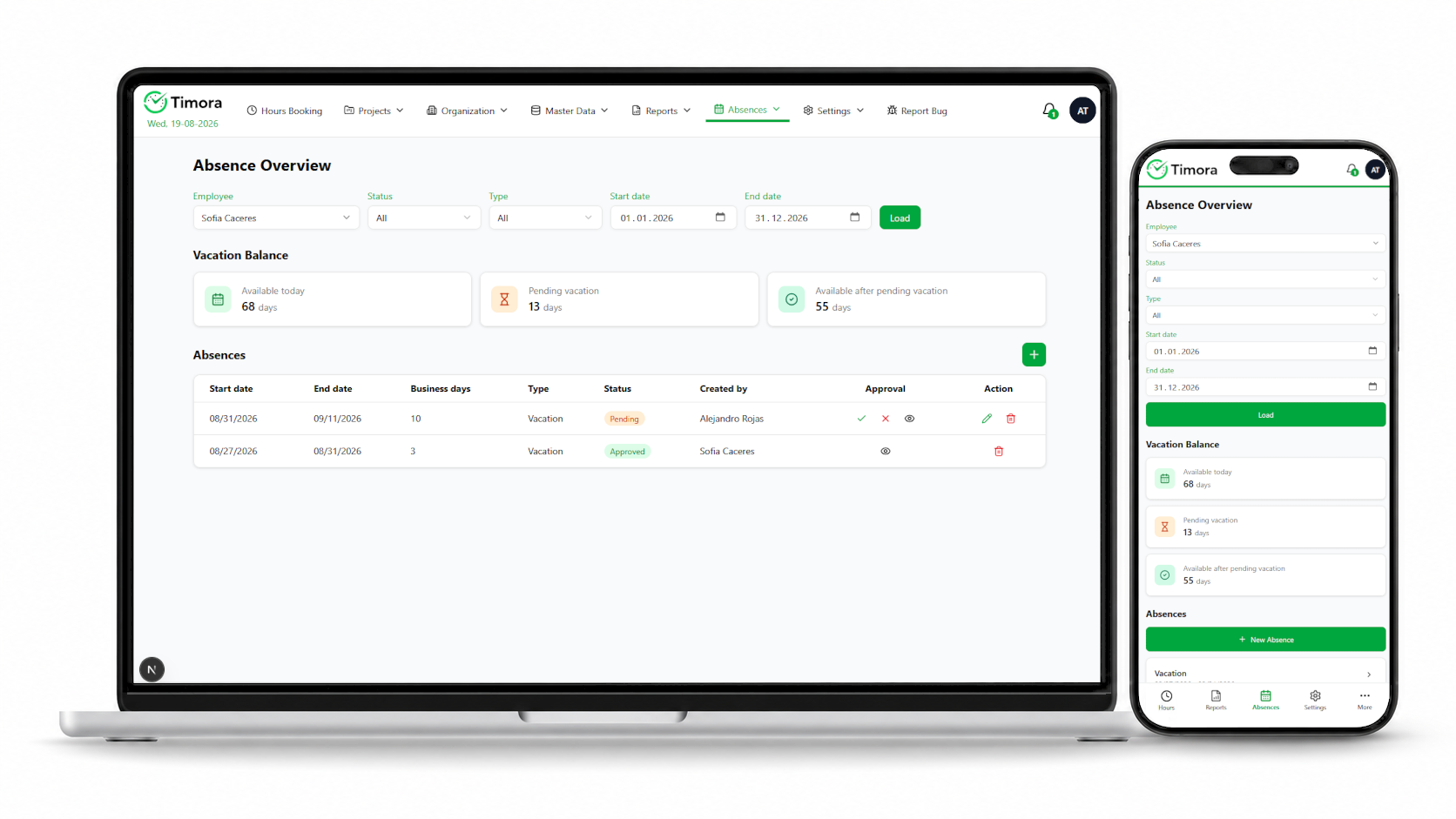
7.1 The absence overview
The overview is reached through Absences › Absence Overview. Narrow the view using the filter area and click Load:
- Employees
- Selection of people. Employees only see themselves here; with the corresponding permission, several people or All Employees can be selected.
- Status
- Processing state of the request (see the table below).
- Type
- Kind of absence: Vacation, Sick Leave, Personal or Suspension.
- Start date / End date
- The period for which absences are displayed.
For each absence the list shows Employee, Start date, End date, Business days (working days excluding weekends and holidays), Type, Status, Created by and Approval.
Types of absence
| Type | Use |
|---|---|
| Vacation | Vacation. Charged against the vacation balance and subject to approval. |
| Sick Leave | Illness. Recorded by HR. |
| Personal | Leave for personal reasons, for example a medical appointment or special leave. |
| Suspension | Unpaid leave or suspension of the employment relationship. |
Status and approval state
Timora distinguishes the status of the absence from the approval state of each person responsible:
| Status | Meaning |
|---|---|
| Pending | Requested, decision still outstanding. |
| Approved | Approved. The period counts as an absence. |
| Rejected | Rejected. The vacation balance is not charged. |
| Revoked | Withdrawn – either by the requester or by HR. |
The Approval column shows the state per responsible person as Open, Approved or Rejected. The action Show Approvals opens the detailed view with person, state and the time of the last change. How many approvals are required depends on the configured approval policy (see Section 7.4).
7.2 Requesting vacation
As an employee you request vacation with + Add Vacation Request. People with extended permissions see + Add Absence in this place instead and can additionally record other types of absence and absences for other people.
- Open Absences › Absence Overview and click + Add Vacation Request.
- Check the Employee field. It is pre-filled with your name.
- Choose the kind of absence under Type.
- Set Start date and End date. Timora calculates the Business days from them.
- Check the vacation balance preview below the date fields (see below).
- Add a Comment if useful, for example a cover arrangement.
- Click Save. Timora confirms with “Absence saved successfully” and notifies the people responsible.
Vacation balance preview
While you are entering a vacation request, Timora immediately checks whether your entitlement is sufficient and shows:
- requested days (“Requested”),
- days available at the start of the vacation (“Available at vacation start”),
- days credited during the vacation (“Credited during the vacation”),
- remaining entitlement after this vacation (“Remaining after this vacation”).
If the request cannot be submitted, Timora gives the reason:
| Message | Meaning |
|---|---|
| “Not enough vacation days available for this period.” | The entitlement is not sufficient for the selected period. |
| “Vacation days can only be used after the probation period has ended.” | The probation period has not finished yet. |
| “Vacation can only be planned up to the next vacation accrual.” | The vacation extends beyond the next accrual date and cannot be planned yet. |
| “The vacation must not lie after the leaving date.” | The period falls after the stored leaving date. |
| “The vacation must not lie before the balance start date.” | The period falls before balances started being kept for this person. |
Start and end date must be in the future, and the end date must not be before the start date. Absences in the past – a sick note, for example – are recorded by HR.
7.3 Vacation balance
The Vacation Balance area of the absence overview shows your entitlement:
- Available today
- Vacation days available today.
- Pending vacation
- Days from requested vacation that has not been decided yet.
- Available after pending vacation
- Days remaining if all open requests are approved.
- “Next accrual”
- Date and amount of the next credit of vacation days.
The entitlement accrues according to the policy configured for your organization – either pro rata across the calendar year or after each completed year of service (see Section 13.4). On top of that come the annual entitlement and any opening balance from the user record (see Section 12.1).
Vacation beyond the accrued entitlement
If you plan vacation that is partly covered by days credited only in the future, Timora points this out: “Part of the planned vacation is covered by vacation days that will only be credited in the future.” The request is possible provided the credit falls before or during the vacation.
Expiry deadlines
Vacation days can be subject to an expiry deadline – a number of months after the end of the accrual period within which the vacation has to be taken. Before the deadline expires, Timora reminds the people concerned and HR automatically. The deadline and the lead time of the reminder are set by the administrator.
7.4 Approving vacation requests
Responsible people process open requests under Absences › Vacation Approvals. The list shows only requests that are still open, with Start date, End date, Business days and Employee; it can be filtered by Employee name.
- Open Absences › Vacation Approvals.
- Use Show Vacation Balance to review the person's vacation balance and the effect of the request.
- Decide with Approve or Reject.
Timora confirms with “Vacation approval saved successfully” and notifies the requester. Decisions can alternatively be made straight from the action menu in the absence overview.
Approval policies
Who has to approve is defined system-wide by the administrator through the approval policy (Vacation approval policy):
| Policy | Meaning |
|---|---|
| Supervisor and HR | The supervisor and HR both have to approve. |
| Supervisor or HR | Approval from either side is sufficient. |
| Supervisor only | Only the supervisor decides. |
| HR only | Only HR decides. |
The supervisor is taken from the Supervisor field in the user record (see Section 12.1).
7.5 Changing, revoking and deleting absences
Which actions are available in the action menu of an absence depends on your permissions and on the status:
- Edit Absence
- Changes period, type or comment. Employees can only change their own vacation requests while they are still open and the period is in the future.
- Revoke
- Withdraws an absence. The status changes to Revoked and any vacation days charged are released again.
- Show Approvals
- Shows the approval state per responsible person.
- Delete Absence
- Deletes the record entirely. This action is reserved for HR and is confirmed through a prompt.
Revoke rather than delete
For absences that were not taken, use Revoke. The event then remains traceable, whereas Delete Absence removes the record for good.
When someone leaves
When a leaving date (Leaving Date) is stored for a person, Timora checks the existing vacation: periods extending beyond the leaving date are shortened, and vacation after it is rejected automatically. Timora states the number of affected records before saving and notifies those concerned as well as the approvers.
Overtime and Payouts
Timora derives the overtime balance from the comparison of target hours and booked hours. Accrued overtime and vacation days can be settled through payouts.
8.1 Reviewing the overtime balance
The overtime balance is found under Reports › Overtime. Select the person under Employee and the year under Year, then click Load. Future years cannot be selected; Timora then reports: “Future years are not allowed. Please select the current year or a past year.”
The Overtime Summary shows two values:
- Previous overtime
- Carry-over from the years before the selected year.
- Current overtime
- Overtime accrued in the selected year.
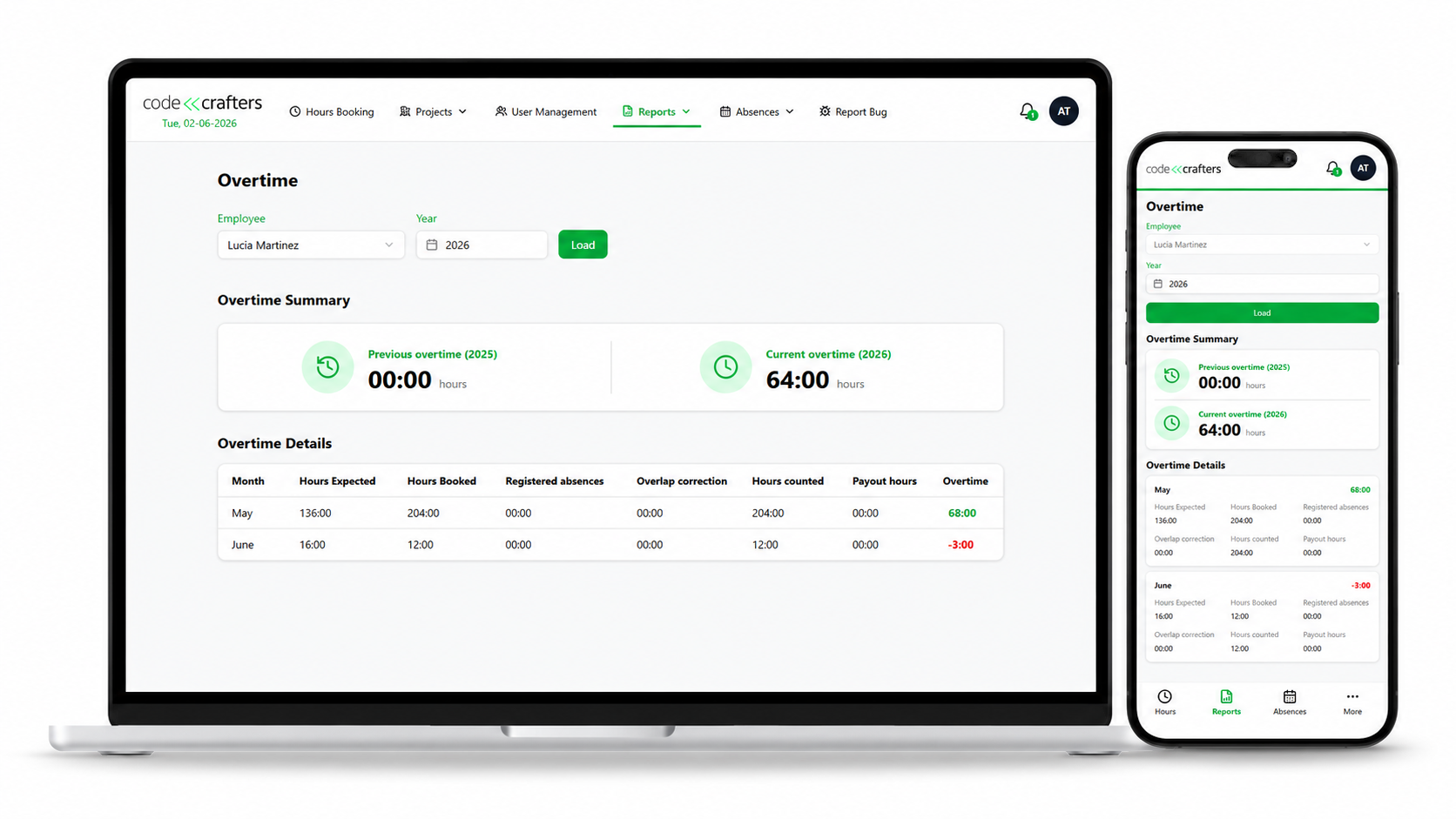
8.2 How Timora calculates overtime
The Overtime Details table sets out the calculation month by month:
| Column | Meaning |
|---|---|
| Month | The accounting month. |
| Hours Expected | Target hours for the month, derived from the working days, the working hours per day and less the public holidays. |
| Hours Booked | Total of the hours booked in time tracking. |
| Registered absences | Hours from approved absences that count as worked, for example vacation and sick leave. |
| Overlap correction | Correction for time that is both booked and covered by an absence. Prevents double counting. |
| Hours counted | Hours credited: booked hours plus absences minus the overlap correction. |
| Payout hours | Hours of the month already paid out as overtime. |
| Overtime | Balance for the month: hours counted minus target hours minus hours paid out. |
The target hours are based on the person's working conditions – Working Hours in the user record – together with the system-wide working days and working hours per day. Changes to working conditions apply from the day of the change; past months are not affected. The Initial Overtime from the user record feeds into the carry-over as an opening balance.
Checking discrepancies
If your overtime balance differs from what you expect, first check whether all time has been booked (Chapter 5) and whether absences have the status Approved (Chapter 7). Working days with no booking produce a negative balance.
8.3 Payouts
Payouts of overtime and vacation days are recorded under Absences › Payouts. Creating them is reserved for HR; employees see their own payouts here.
After you click Load, the Available for Payout area shows how much overtime (Overtime, in hours) and how many vacation days (Vacation, in days) can be paid out.
- Open Absences › Payouts and click + Add Payout.
- Choose the person under Employee.
- Choose either Overtime or Vacation under Type.
- Set the Date of the payout. It must be today or a future date.
- Enter the amount under Amount – hours for overtime, days for vacation. The field Available for payout shows the balance available.
- Click Save.
Timora validates the available balance. If it is not sufficient, it reports “Not sufficient hours available.” or “Not sufficient days available.” Only payouts dated today or in the future can be changed afterwards; this is not possible for payouts in the past that have already been settled.
Overtime paid out appears in the overtime report in the column Payout hours and reduces the balance there. Vacation days paid out reduce the vacation balance accordingly.
A payout is not a payroll transaction
Timora only documents the settlement of overtime and vacation days in the time account. The actual payment is handled by your payroll system and has to be initiated there separately.
Reports and Analysis
Under Reports you analyse the data that has been recorded. This chapter covers the reports of the core platform. The capacity and resource planning reports are described in Chapter 10 and the skill search in Chapter 11.
9.1 Using reports
All reports follow the same sequence: choose the filters, click Load, review the result and, if needed, produce output with Export. Before loading, a prompt asks you to choose the filter values; if the filters return nothing, Timora reports that no entries match the loaded filters.
| Report | Question it answers | Plan |
|---|---|---|
| Project Time | Which hours were booked when, by whom and on which task? | All plans |
| Project Time Investment Report | How is the effort of a project distributed across entry types and tasks? | All plans |
| Overtime | What is a person's overtime balance? (Chapter 8) | All plans |
| Project Capacity Report | How do target, planned and actual capacity compare per project? | Business |
| Resource Planning Report | Who has free capacity, and who is overallocated? | Business |
| Skill Search | Who has particular qualifications? | Enterprise |
9.2 Project Time
The report Reports › Project Time lists individual bookings. It is suited to evidence for customers, invoicing by effort and checking your own bookings.
Filters: Start date, End date, Project, Task and Employees. Employees only see their own bookings; an extended permission is required for the bookings of others.
Result: the table shows Date, User, Project, Task, Description and Hours. A Daily Total is given per day and a Total at the end.
9.3 Project Time Investment Report
This report answers the question of what a project's time was spent on. It aggregates the bookings by entry type and task and is therefore the basis for statements about the balance between implementation, review, testing and documentation.
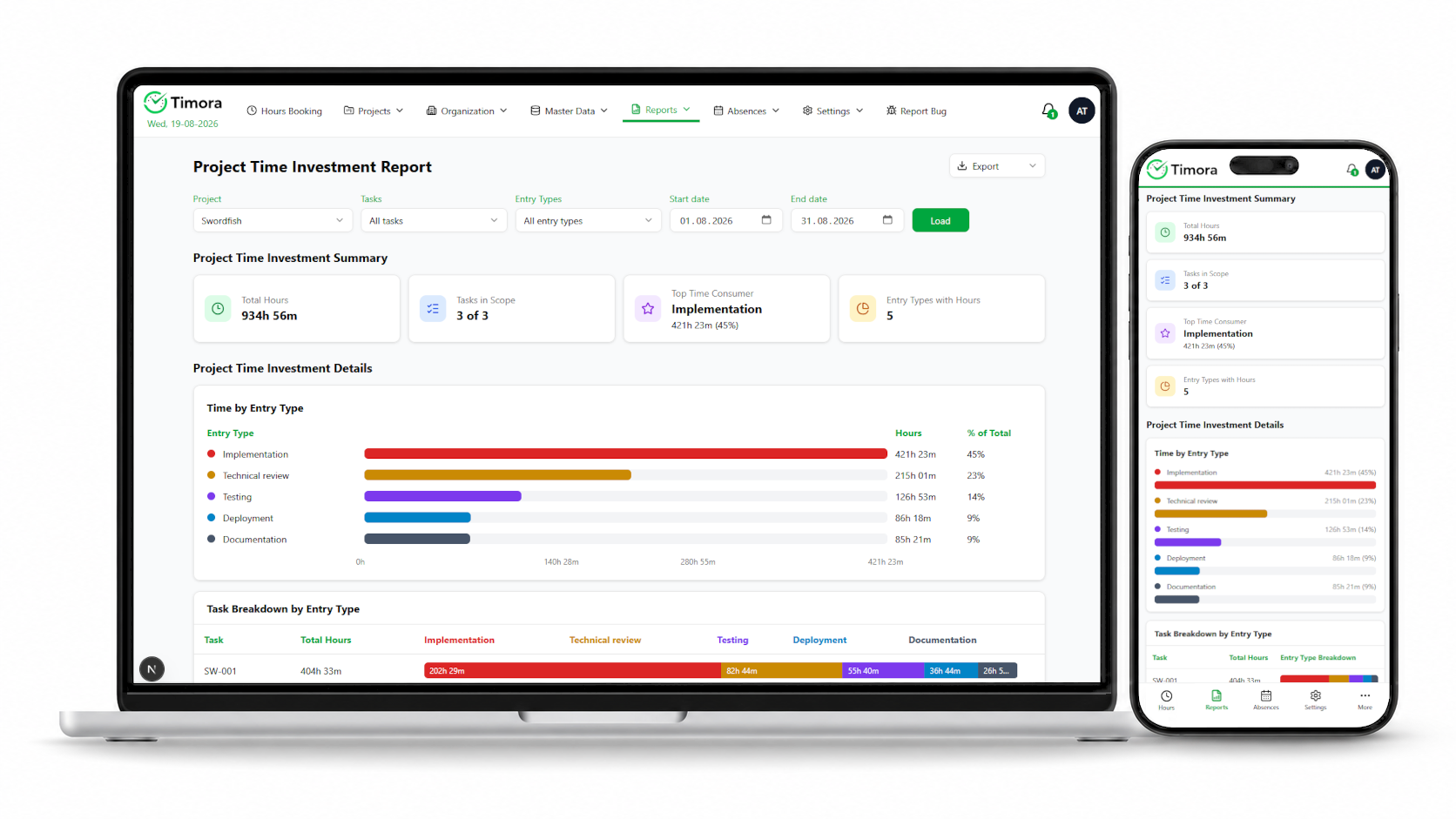
Filters: Project (mandatory), Tasks, Entry Types as well as Start date and End date.
Summary: the Project Time Investment Summary area shows Total Hours, Tasks in Scope (tasks included out of the total available), Top Time Consumer (the entry type with the largest share) and Entry Types with Hours.
Details: below that are two analyses: Time by Entry Type with hours and share per entry type, and Task Breakdown by Entry Type with the breakdown per task.
Only as good as the entry type
This report is only as accurate as the choice of entry type during recording. Define clearly in your organization which activity is booked to which entry type (see Section 5.3).
9.4 Overtime report
The report Reports › Overtime is described in Chapter 8, since it belongs with the overtime balance.
9.5 Exporting and printing
The Export button produces output of the loaded result. Which formats are offered depends on the report:
| Format | Use |
|---|---|
| Excel | Further processing in a spreadsheet, for example for invoicing or your own analysis. |
| Sharing and archiving in a fixed form. | |
| A print-optimised view for immediate printing. |
What is exported is always the currently loaded result with the filters applied. If you change the filters, load again with Load first and then export. If generation fails, Timora says so explicitly, for example “Unable to generate Excel report.”
If the custom company logo package is booked, all PDF and Excel output carries your logo Business (see Section 13.6).
Capacity and Resource Planning Business
Plan-dependent chapter
This chapter describes the Project Capacity & Resource Planning package. It is included from the Business plan upwards and can be booked as an add-on in Standard. Without this package the menu entries Capacity Planning, Project Capacity Report and Resource Planning Report are missing, as is the project action Plan Capacities. To check whether the package is enabled for your installation, see Settings › System Settings › License.
While time tracking documents what has been done, capacity planning answers the question about the future: who is assigned to which project in which period, where will bottlenecks arise, and where does capacity remain free?
10.1 Key terms
- FTE (full-time equivalent)
- Share of a full-time position.
1.0is a person's full working time,0.5is half of it. Planning is done in FTE rather than hours, which keeps it independent of individual working-time models. - Target capacity (Target)
- The capacity available according to contract and calendar, adjusted for vacation and public holidays.
- Planned capacity (Planned)
- The assignment of a person to a project recorded in capacity planning.
- Actual capacity (Actual)
- The time actually booked in time tracking, converted into FTE.
- Utilization (Utilization)
- Ratio of actual to target capacity, as a percentage.
10.2 Planning capacity
Planning is done under Projects › Capacity Planning or through the project action Plan Capacities. A planning entry consists of a person, a project, a period and an FTE share.
Two views are available:
- By Project
- You select a project and plan the people involved. Suited to project managers staffing a project.
- By Employee
- You select a person and distribute their capacity across projects. Suited to steering individual people across several projects.
- Open Projects › Capacity Planning and choose the view By Project or By Employee.
- Select the Project or the Employee together with Start Date and End Date, then click Load.
- Click + Add Capacity.
- Use the search field to select the person or the project.
- Set Start Date and End Date of the planning period.
- Enter the FTE share, for example
0.5for half a position. - Click Save. Timora confirms with “Capacities saved successfully”.
Validation rules for planning
Timora validates the entries before saving and highlights faulty rows. The message “Please fix the highlighted fields before saving.” points to one of the following causes:
| Check | Rule |
|---|---|
| Period | Start and end date are mandatory for every entry; the end date must not be before the start date. |
| FTE range | The value must be greater than 0 and at most 1, with no more than two decimal places. |
| Overlapping periods | Periods must not overlap for the same person on the same project. Adjust the start or end date. |
| Total capacity per person | The sum of all FTE for a person must not exceed 1.0 in any overlapping period. Timora reports: “The total FTE for the employee exceeds 1.0 in at least one overlapping period.” |
Plan in whole blocks of time
Plan in contiguous periods – monthly or quarterly blocks, for example – rather than individual days. That keeps the planning readable and the analysis meaningful, since the reports aggregate to day, week, month or quarter level anyway.
10.3 Project Capacity Report
The report Reports › Project Capacity Report compares target, planned and actual capacity for a project and shows how well the planning matched reality.
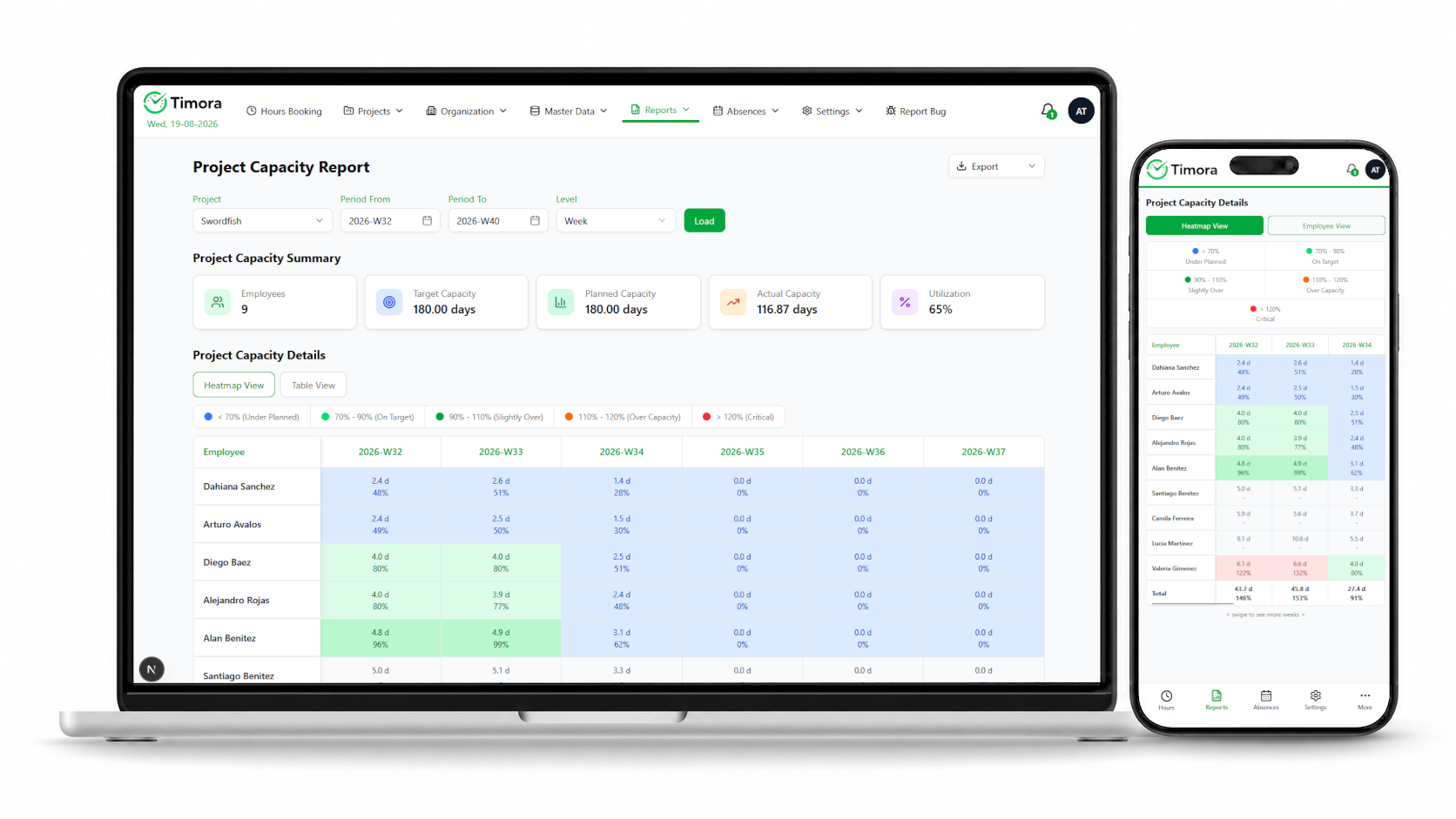
Filters: Project, Period From, Period To and Level. The aggregation level (Day, Week, Month, Quarter) controls the granularity.
Summary: Employees, Target Capacity, Planned Capacity, Actual Capacity and Utilization.
Views
- Heatmap View
- A matrix of people (rows) and periods (columns). The colour shows utilization at a glance.
- Table View
- A tabular presentation with Target, Planned, Actual and the percentage per person and period.
Heatmap colour scale
| Range | Rating | Suggested response |
|---|---|---|
| below 70 % | Under Planned | Capacity is under-planned – assign further work or correct the planning. |
| 70 – 90 % | On Target | Utilization is within the target range; no action needed. |
| 90 – 110 % | Slightly Over | Slightly above target; keep an eye on it. |
| 110 – 120 % | Over Capacity | Overloaded; redistribute work. |
| above 120 % | Critical | Critical; immediate action required. |
Detail view
Clicking a cell in the heatmap opens the detail view Capacity Details for that person and period. It contains:
- Capacity Overview: target, planned, actual, utilization and the variances of actual against planned and against target.
- Project Breakdown: a breakdown by project with planned, actual and utilization values – showing where the person's time actually went.
- Trend: the course of actual, planned and target over the preceding periods.
- Capacity Notes: an assessment in plain words, for example “Utilization is over capacity. Consider redistributing work.”
The report can be exported with Export as Excel or as a print view (Print).
10.4 Resource Planning Report
This report changes the perspective: it looks not at one project but at the people, answering the question of who still has capacity free and when. You find it under Reports › Resource Planning Report.
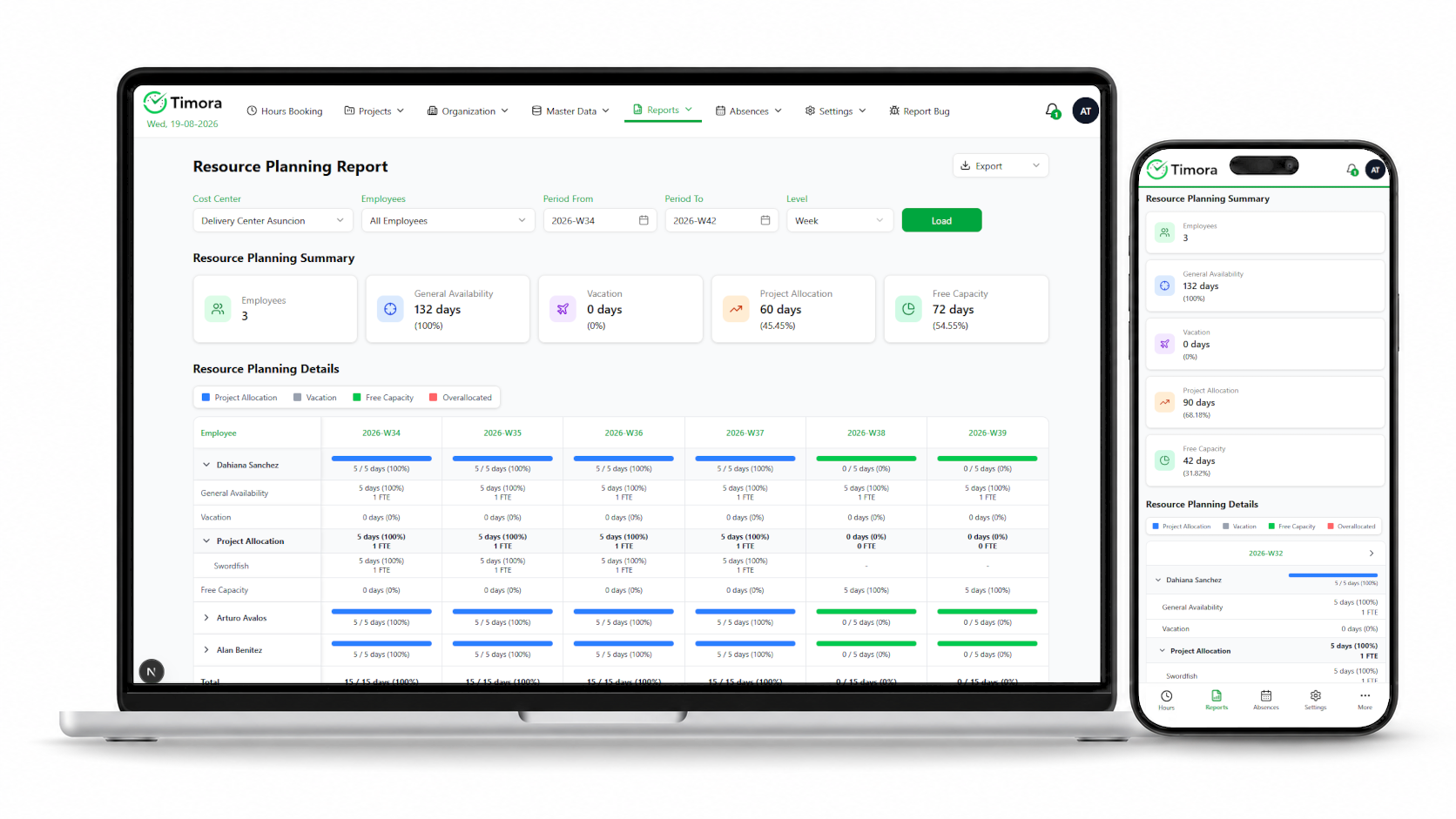
Filters: Cost Center, Employees, Period From, Period To and Level. The cost center narrows the analysis to one organizational unit.
The key figures
All values are given in FTE and build on one another:
| Key figure | Meaning |
|---|---|
| General Availability | The person's basic availability in the period, derived from their working-time model. |
| Vacation | The share taken up by vacation and other absences. |
| Target Availability | The availability that can actually be planned: general availability less absences. |
| Project Allocation | The share already committed through capacity planning. |
| Free Capacity | The share still available to plan: target availability less project allocation. |
The Status column shows Within Capacity or Overallocated per period. In case of overallocation Timora also states the number of affected periods.
Views
- Utilization View
- Rates utilization per person from Under allocated through Balanced to Over allocated.
- Capacity Grid View
- Shows the composition of each period from project allocation, vacation and free capacity.
This report can also be exported as Excel or a print view. Previous period and Next period move along the timeline; on mobile devices the table can be swiped sideways.
Profiles and Skills Enterprise
Plan-dependent chapter
This chapter describes the Skill Database & Technical Profiles package. It is included from the Enterprise plan upwards and can be booked as an add-on in the Standard and Business plans. Without this package the menu entry Skill Database, the Skill Search report, the technical profiles including the My Profile entry in the user menu, and the project action Edit Project Skills are all unavailable.
This package makes qualifications across the organization visible and analysable: which capabilities exist, at what level, and who fits a specific project requirement?
11.1 Maintaining the skill database
The skill database under Settings › Skill Database is the catalogue of all usable terms. Only what is defined here can be assigned to profiles and projects. The area has four tabs:
- Skill Categories
- Top-level groupings, for example “Programming languages” or “Cloud”.
- Skills
- The individual capabilities, each assigned to a category.
- Languages
- Languages used for the language skills in the profiles.
- Professional Roles
- Professional roles, for example “Software architecture” or “Project management”.
- Open Settings › Skill Database and choose the appropriate tab.
- Click + Add ….
- Enter the Code as the technical identifier. Only uppercase letters, digits and underscores are allowed, for example
JAVAorCLOUD_AZURE. - Enter the name or label and – for skills – the Category.
- Click Save.
Agree the structure first
Agree categories and naming before the profiles are filled in. Duplicate entries for the same capability – “JavaScript” and “JS”, for example – make the skill search useless, because matches are split across different entries.
11.2 Technical profiles
You open a person's profile through User menu › My Profile for your own profile, or through Show Profile in the action menu of user management. A profile has three tabs: Profile, Master Data and Certifications.
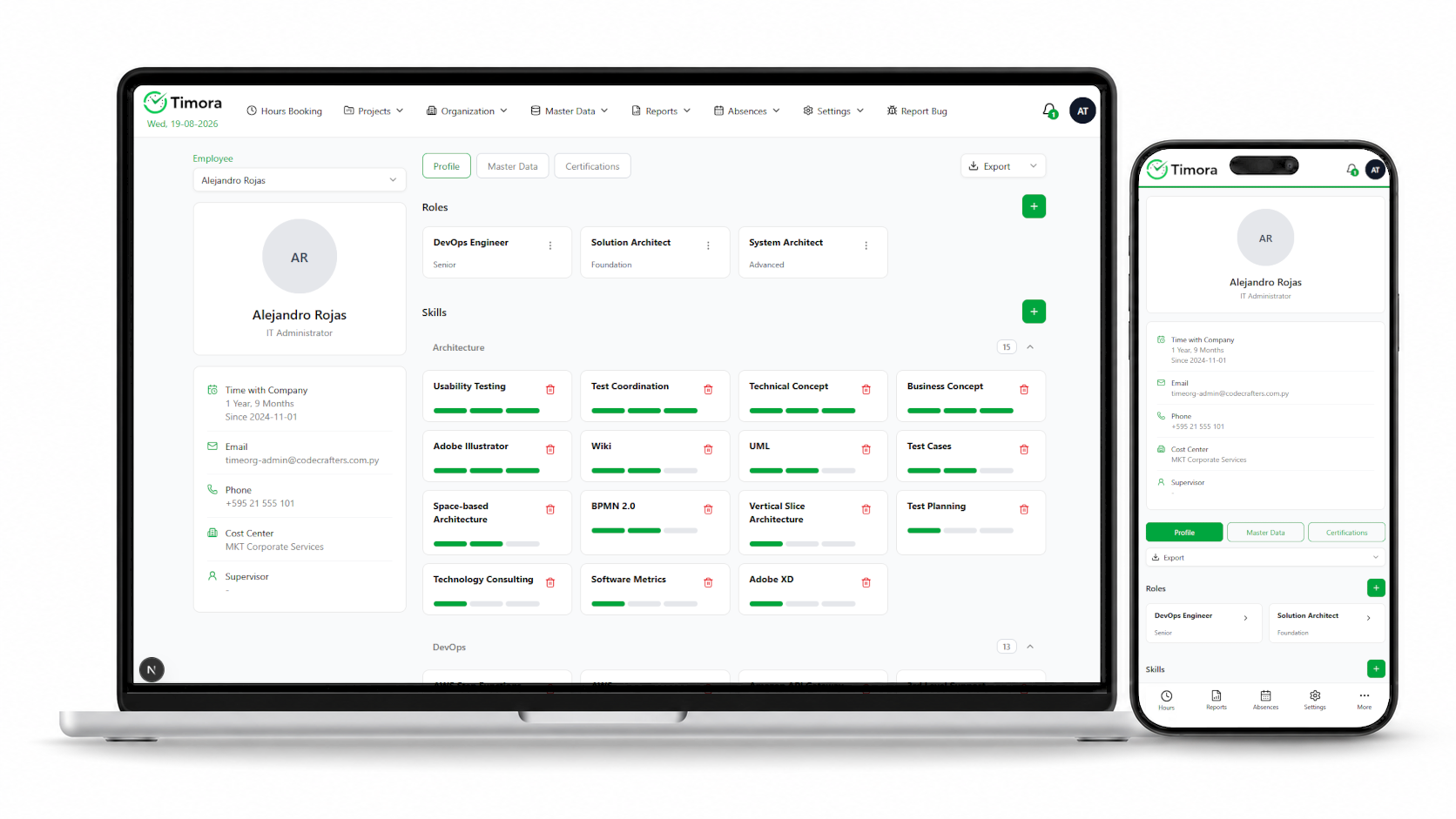
The Profile tab
The header shows Time with Company, Email, Phone, Cost Center and Supervisor. Four sections follow:
- Roles
- Professional roles with the level Foundation, Advanced or Senior.
- Skills
- Capabilities, grouped by category, with the level Foundation, Advanced or Expert.
- Languages
- Language skills from Basic Knowledge through Good Knowledge, Very Good Knowledge and Business Fluent to Native Language.
- Project Experience
- The person's projects with description, customer, period and the skills used in the project. This section is built automatically from the project assignments and project skills (see Section 6.4).
Add skills, languages and roles as follows:
- In the relevant section, click + Add Skill, + Add Language or + Add Role.
- Choose the entry from the selection list. It is added to the list “… to add”.
- Set the level in the Level column.
- Add further entries and click Save.
Existing entries are changed with Edit and removed with Delete.
The Master Data tab
Shows the person's core details: Entry Date, Cost Center and Supervisor plus the personal data (ID number, date of birth, address). These details are maintained in user management (see Section 12.1) and are read-only here.
The Certifications tab
Here you record certifications with Name, Issued By, Obtained On and Valid Until. The validity date must not be earlier than the date obtained.
Exporting a profile
Export produces the profile as PDF or a print view – suitable as evidence of qualifications in proposals and tenders. If the custom company logo package is booked, the export carries your logo.
Personal data
Profiles and profile exports contain personal data. Share them only to the extent necessary and within the data protection rules that apply in your organization. Access to other people's profiles requires a separate permission.
11.3 Skill search
Under Reports › Skill Search you search for people by their qualifications – to staff a project team, for example, or to answer an enquiry.
- Open Reports › Skill Search.
- Select the capabilities you are looking for under Skills. Multiple selection is possible.
- Under Match Mode, define how the selection is to be read: At least one skill finds everyone with at least one of the skills, All skills only people who have all of them.
- Click Search.
For each person the result list shows:
- Employee
- The person's name.
- Role / Cost Center
- Professional role and cost center, for organizational context.
- Matched Skills
- Which of the searched skills the person has, with the level.
- Missing Skills
- Searched skills the person does not have – marked Missing.
- Projects
- Number of projects with relevant experience.
- Score
- A match rating derived from matches, level and relevant project experience.
Show details opens a person's relevant project experience with project, customer, period, skills used and description. Download profile downloads the full profile as a PDF. The result list itself can be exported as Excel, PDF or a print view.
Active users only
The skill search considers active users only. If the search returns nothing, Timora reports: “No active user matches the selected skills.” In that case check whether the profiles have been maintained and whether searching with At least one skill gets you there.
Organization and Master Data
Users, cost centers, customers and holidays are the basis of every calculation in Timora. This chapter is aimed at HR and administration. The areas described require the corresponding permissions.
12.1 User management
User management is reached through Organization › User Management. The list shows the identifier, name, email address, cost center and status; you can filter by name, status and cost center. Above the list Timora displays the number of active users and the licensed limit.
Creating a user
- Click + Add User.
- Enter the personal details in the Personal Data area: first and last name, ID number, phone, address and date of birth.
- In Account Settings, enter the Email used as the sign-in identifier, the Language and the Status.
- Complete the Employment & Opening Balances area (see the field overview below).
- Set the booking deadlines in Hours Booking Settings.
- Define the working time in Working Conditions.
- Assign an Initial Password and repeat it. The person has to change it at the first sign-in.
- Click Save.
Employment data and opening balances
These fields drive the calculation of the vacation and overtime balances and should be complete before the account is used:
- Entry Date
- Date of joining. The basis for length of service, probation period and the accrual of vacation entitlement.
- Leaving Date
- Date of leaving. When it is set, vacation extending beyond it is shortened and later vacation is rejected automatically (see Section 7.5).
- Balance Start Date
- The date from which balances are kept in Timora. Required when migrating from a previous system: Timora does not calculate before this date. It must not be before the entry date nor after the leaving date.
- Working Hours
- Contractual working time. The basis for target hours in the overtime report.
- Annual Leave
- Annual vacation entitlement in days.
- Initial Overtime
- Overtime balance at the start of balance keeping.
- Initial Vacation Days
- Vacation balance at the start of balance keeping. Whole days, at least 0.
- Supervisor
- The supervising person. Decisive for vacation approval (see Section 7.4).
- Job Title
- Job title. Appears in the technical profile.
- Cost Center
- Cost center. The basis for analysis by organizational unit.
Booking deadlines per user
- Days Enabled Past
- Number of days that may be booked retroactively.
- Days Enabled Past Month
- Number of days after the turn of the month during which the previous month remains editable.
How the two values interact is described in Section 5.4.
Working conditions apply from today
Changes to working conditions apply from the day of the change; past periods remain unchanged. Timora points this out in the dialog: “Changes apply from today on. Past data is not affected.” Working conditions history shows all previous values with the date they took effect.
Actions per user
- Show Profile Enterprise
- Opens the technical profile (see Section 11.2).
- Edit User
- Edits the user record.
- Edit Roles
- Assigns system-wide roles (see Section 13.1).
- Delete User
- Deletes the user after a confirmation prompt.
Resetting a password
- Open the user with Edit User.
- Click Reset Password.
- Enter a new password and repeat it.
- Click Reset Password. The person has to change the password at their next sign-in.
Communicate the new password by a channel other than unencrypted email – by phone, for example.
Deactivate rather than delete
Set people who have left to Inactive and record the leaving date instead of deleting the user. Only then do the booked hours, absences and historical analyses remain complete. Inactive users do not count towards the licensed user limit.
12.2 Cost centers
Cost centers under Organization › Cost Centers structure the organization and serve as a filter in analyses – in the resource planning report in particular.
- Open Organization › Cost Centers and click + Add Cost Center.
- Enter the Name.
- Define the responsible person as Manager.
- Click Save.
A person is assigned to a cost center in the user record through the field Cost Center.
12.3 Customers
Customers under Master Data › Customer Management are assigned to projects and make analysis by client possible.
- Open Master Data › Customer Management and click + Add Customer.
- Enter Name, Address and Contact Name.
- Click Save.
The assignment to a project is made in the project dialog (see Section 6.1). For internal work choose No customer there.
12.4 Holidays
Holidays under Master Data › Holiday Management feed directly into the calculation of target hours and working days: they reduce the target hours in the overtime report and do not count as a vacation day in absences.
Creating a holiday
- Click + Add Holiday.
- Enter the Holiday Name.
- Set Day (1–31) and Month (1–12).
- Enter the first year it applies under Initial Year and – if it is time-limited – the last year under Last Year.
- Click Save.
A holiday created this way applies every year on the same calendar day. The year has to be the current one or a future one, and the last year must not be before the first.
Differing dates – holiday overwrite
Holidays with a moveable date – Easter, or a holiday shifted to another day – are handled through a per-year exception:
- In the action menu of the holiday, open + Add Holiday Overwrite.
- Enter Day, Month and Year of the differing date.
- Click Save.
The Overwrite column of the holiday list shows which holidays have an exception. They are maintained with Edit Overwrite and Delete Overwrite.
Maintain holidays before the turn of the year
Enter the holidays for the coming year, including all differing dates, well before the turn of the year. Missing holidays lead to target hours that are too high and therefore to incorrect overtime balances. Timora can remind you through a scheduled job when master data for the following year is missing (see Section 13.4).
Administration
The Settings area is reserved for administrators. It is where roles and permissions are granted, entry types are maintained, system-wide rules are defined and the license and company logo are managed.
Far-reaching effect
The settings in this chapter affect all users and the calculations. Review changes beforehand and document them within your organization.
13.1 Roles
Roles are managed under Settings › Roles Management. A role bundles permissions and is assigned to users – permissions are never granted to a person directly.
In the Type column the list distinguishes System – roles delivered with Timora – from Custom – roles you created yourself.
- Click + Add Role.
- Enter the Role Id as a descriptive identifier, for example
PROJECT_LEAD. - Set the Status to Active.
- Click Save.
- Open Edit Permissions in the action menu and assign the required permissions with + Add Permission (see Chapter 14).
- Then assign the role in user management with Edit Roles.
Deactivate Role withdraws a role from all users without deleting it – the recommended approach when a role should not apply for a while.
Unlicensed permissions
Permissions belonging to a package you have not booked are marked “Not included in the plan” in the Edit Role Permissions dialog. They can be assigned but have no effect until the corresponding package is enabled.
13.2 Permissions
Settings › Permission Management lists every permission in Timora. Permissions are not created here – the catalogue is defined by the application. What you can do is:
- Activate / Deactivate Permission
- Switches a permission on or off system-wide. A deactivated permission has no effect in any role.
- Edit Permission Implications
- Defines which further permissions a permission implies.
Implied permissions save duplicate maintenance: if a permission for user management implies read access to users, the higher-level permission alone is enough in the role. The assignment is made in the Edit Permission Implications dialog through the lists Available Permissions and Implied Permissions.
Change with care
Deactivating a permission or changing the implied permissions takes effect immediately for all roles and therefore for all users. After every change, verify with a test user that the intended areas are still reachable.
13.3 Hours entry types
Settings › Hours Entry Types is where you maintain the entry types that can be selected in time tracking.
- Click + Add Hours Entry Type.
- Enter the Code as the technical identifier.
- Enter the label in both interface languages: Title (English) and Title (Spanish).
- Set the Status to Active.
- Click Save.
Deactivate rather than delete
Set entry types you no longer need to Inactive. They are then no longer offered for new bookings, while existing bookings and their analyses remain intact.
13.4 System settings
Settings › System Settings has three tabs: General, License and Personalization. This section covers General.
Working time (Employment Parameters)
- Working hours per day
- Working hours per working day, between 1 and 24. The basis for the target hours.
- Working days
- The weekdays that count as working days. At least one day is required.
Changes apply from the day of the change; past periods remain unaffected. The history is available through Working time history.
Defaults for new users (User Defaults)
Default language for new users sets the interface language new users start with.
Vacation (Vacation)
- Vacation accrual policy
- How vacation entitlement accrues: Calendar year (pro-rated) – pro rata across the calendar year – or Anniversary – after each completed year of service. This setting is defined once during initial setup and cannot be changed here.
- Vacation approval policy
- The approval policy for vacation requests (see Section 7.4).
- Probation period in months
- Length of the probation period, 0 to 12 months. No vacation can be taken before it ends.
- Vacation deadline (months)
- Months after the end of an accrual period within which the vacation has to be taken (1 to 12).
- Deadline reminder (days before)
- Lead time of the reminder about expiring vacation days, 1 to 60 days.
Notifications and scheduled jobs
Notifications enabled controls whether Timora sends notifications. Timers enabled is the main switch for the scheduled background jobs. The following can be enabled individually:
| Job | Purpose |
|---|---|
| Task status update | Keeps task statuses in sync automatically. |
| Vacation deadline verification | Checks vacation expiry deadlines and sends the related reminders. |
| Hours booking verification | Checks whether the required hours have been booked. |
| Hours entries verification | Checks hours entries for required follow-up. |
| Following year masterdata verification | Checks whether master data for the next year – holidays in particular – is available. |
| Year-end snapshots | Saves the overtime and vacation results of closed years. |
Leave the scheduled jobs enabled
Disable the jobs only temporarily and for a specific reason. Without them, reminders about booking and vacation deadlines are not sent and the year-end balances are not saved.
Password policy (Password Policy)
- Minimum / Maximum password length
- Permitted length, 1 to 99 characters each. The minimum must not exceed the maximum.
- Allowed character sets
- Permitted character groups: lowercase letters, uppercase letters, digits and special characters. At least one group has to be allowed.
- Required character sets
- How many groups a password has to use at minimum (1 to 4). The value must not exceed the number of allowed groups.
Time zone
The Time zone is defined once during system setup and cannot be changed here. It determines which calendar day applies for booking deadlines and calculations.
13.5 License
The License tab shows which scope is enabled for your installation. It is the authoritative answer for every plan-dependent feature marked in this manual:
- Plan
- The plan booked: Standard, Business or Enterprise.
- Deployment
- The operating model: SaaS or On-Premise.
- Customer / License ID
- Licensee and license identifier. Have these ready for support enquiries.
- Issued on
- The date the license was issued.
- Support level
- The agreed level of support.
- Maintenance until
- End of the maintenance period. After that Timora reports: “Maintenance expired. New versions are not included in the contract.”
- Active users
- Number of active users relative to the licensed limit.
- Add-ons
- Which add-on packages are enabled, each with Included or Not available: Project Capacity & Resource Planning, Skill Database & Technical Profiles and Custom Branding (Company Logo).
Installing a license
- Open Settings › System Settings › License.
- Paste the license key you received into the License key field in the Install license area.
- Check the preview of its contents.
- Click Activate license. Timora confirms with “License installed”.
If no valid license key is installed, Timora runs in a restricted mode without add-on packages and with a limited number of active users, and says so explicitly. If a key is damaged, “This is not a valid license key.” appears – request a new key in that case.
13.6 Company logo Business
Plan-dependent feature
The custom company logo is included from the Business plan upwards. Without it the Personalization tab cannot be used and Timora displays the Timora logo throughout.
You store your logo under Settings › System Settings › Personalization. It then appears in the top bar, on the sign-in page and in all PDF and Excel reports. Its proportions are always preserved.
- Open Settings › System Settings › Personalization.
- In the Upload a new logo area, click Choose file and select the image file.
- Check the Preview.
- Click Upload logo. Timora confirms with “Logo uploaded”.
File requirements:
- PNG or JPEG format, at most 2 MB.
- At most 8000 px in width and height.
- Larger logos are scaled down proportionally to at most 600 × 200 px. For a sharp display the logo should be at least 600 px wide or 200 px high.
The Current logo area shows the active logo with its dimensions, file size and upload time. Use Timora logo removes your own logo again and restores the Timora logo.
| Message | Remedy |
|---|---|
| “The file is larger than 2 MB.” | Reduce the file size or compress it more. |
| “Only PNG and JPEG images are supported.” | Save the logo as PNG or JPEG. SVG and other formats are not accepted. |
| “The file is not a valid image.” | The file is damaged or is not an image. Export it again. |
| “The image must not be wider or higher than 8000 px.” | Reduce the dimensions. |
| “The logo is still larger than 200 KB after scaling. …” | Use a simpler logo, for example without photographic elements or gradients. |
Roles and Permissions
This chapter is a reference: it lists the permissions in Timora together with the areas they unlock. Use it when setting up roles (Section 13.1) and when answering the question of why a person cannot see a particular area.
14.1 How permissions work
Permissions are assigned to roles, and roles to users. A person can hold several roles; their permissions are the sum of all of them. In addition, a permission can imply further permissions (see Section 13.2).
For visibility in the interface the following applies:
- If the permission is missing, the menu entry is not displayed. Opening the page directly shows “Access Denied – You do not have permission to view this page.”
- If an area belongs to a package you have not booked, it is likewise not displayed – regardless of permissions (see Chapter 3).
- Both conditions have to be met: the permission and the package.
Permissions are not enforced in the interface alone
Every access is additionally checked on the server. The interface hides areas, while the back end enforces the permissions independently of that.
14.2 Permission reference
The identifiers match the Permission Id column under Settings › Permission Management.
Basic access
| Permission | Unlocks |
|---|---|
USER |
Basic access: time tracking, own absences and vacation requests, own vacation and overtime balance, the Project Time and Overtime reports, and the payout overview. Everyone who works with Timora needs this permission. |
ADMIN |
The administration area: roles, permissions, hours entry types and system settings including the license. |
Projects and tasks
| Permission | Unlocks |
|---|---|
MANAGE_PROJECT |
Creating, changing and deleting projects. |
MANAGE_PROJECT_TASK |
Task management including hour limits; access to Projects › Task Management. |
MANAGE_PROJECT_PERMISSION |
Granting project access (Edit Project Permissions); access to Projects › Project Management. |
MANAGE_PROJECT_CAPACITY Business |
Capacity planning under Projects › Capacity Planning and the project action Plan Capacities. |
MANAGE_PROJECT_SKILL Enterprise |
Assigning project skills (Edit Project Skills). |
People, absences and profiles
| Permission | Unlocks |
|---|---|
MANAGE_USER |
User management under Organization › User Management: creating and changing users, assigning roles, resetting passwords. |
MANAGE_USER_PLUS |
Extended HR functions: recording, changing, revoking and deleting absences for other people (+ Add Absence instead of + Add Vacation Request), and creating payouts. |
MANAGE_USER_PROFILE Enterprise |
Viewing and maintaining the technical profiles of other people. |
USERS_READ_ALL |
Read access to all users, for example to select people in filters and dialogs. |
MANAGE_ABSENCE |
Managing absences. |
ABSENCES_READ_ALL |
Read access to the absences of all people – the prerequisite for the team view in the absence overview. |
RESPOND_VACATION_REQUEST |
Approving and rejecting vacation requests; access to Absences › Vacation Approvals. |
Master data
| Permission | Unlocks |
|---|---|
MANAGE_COST_CENTER |
Cost centers under Organization › Cost Centers. |
MANAGE_CUSTOMER |
Customers under Master Data › Customer Management. |
MANAGE_HOLIDAYS |
Holidays and differing dates under Master Data › Holiday Management. |
EDIT_SKILLS Enterprise |
The skill database under Settings › Skill Database. |
MANAGE_BRANDING Business |
The company logo under Settings › System Settings › Personalization. |
Reports
| Permission | Unlocks |
|---|---|
CREATE_REPORT_PLUS |
Extended reports beyond your own data; access to the Project Time Investment Report. |
CREATE_REPORT_PROJECT_INVEST |
Analysis of time investment per project. |
CREATE_REPORT_PROJECT_CAPACITY Business |
The Project Capacity Report and the Resource Planning Report. |
CREATE_REPORT_RESOURCE_PLAN Business |
Resource planning analyses. |
CREATE_REPORT_SKILL_SEARCH Enterprise |
Skill Search under Reports › Skill Search. |
14.3 A suggested role setup
The following arrangement has proved a useful starting point. Adapt it to your organization and verify every role with a test user after setting it up.
| Role | Permissions |
|---|---|
| Employee | USER |
| Line manager | USER, RESPOND_VACATION_REQUEST, ABSENCES_READ_ALL, USERS_READ_ALL |
| Project manager | USER, MANAGE_PROJECT, MANAGE_PROJECT_TASK, MANAGE_PROJECT_PERMISSION, CREATE_REPORT_PLUS, USERS_READ_ALL; with capacity planning also MANAGE_PROJECT_CAPACITY and CREATE_REPORT_PROJECT_CAPACITY; with the skill package also MANAGE_PROJECT_SKILL |
| HR | USER, MANAGE_USER, MANAGE_USER_PLUS, MANAGE_ABSENCE, ABSENCES_READ_ALL, USERS_READ_ALL, RESPOND_VACATION_REQUEST, MANAGE_COST_CENTER, MANAGE_HOLIDAYS; with the skill package also MANAGE_USER_PROFILE |
| Administrator | USER, ADMIN and the master data permissions; with the skill package also EDIT_SKILLS, from Business also MANAGE_BRANDING |
As little as possible
Grant only the permissions a given task actually requires. In
particular, ADMIN, MANAGE_USER_PLUS and the
permissions granting read access to all people should be reserved for
a small, clearly identified group.
FAQ and Troubleshooting
This chapter matches the most common questions and messages to their cause and tells you what to do.
15.1 Sign-in and access
| What you see | Cause and what to do |
|---|---|
| “Login was not successful. …” | Email address or password is wrong. Check the spelling and your keyboard layout. A forgotten password is reset by the administrator (Section 12.1). |
| “You were signed out automatically. Please sign in again.” | The session has expired. Sign in again. Unsaved entries are lost – save longer entries as you go. |
| The “Change password” page cannot be left. | An initial or reset password has to be changed. Set your own password (Section 4.1). |
| “Access Denied” when opening a page | The required permission is missing. Contact your administrator (Chapter 14). |
| “Not included in your plan” | The area belongs to a package that has not been booked. Settings › System Settings › License shows what is enabled (Chapter 3). |
| An expected menu entry is missing. | Either the permission is missing or the package is not booked. Both have to be in place. |
15.2 Time tracking
| What you see | Cause and what to do |
|---|---|
| A day cannot be booked. | The day is in the future, outside the retroactive window, or the previous month is already closed (Section 5.4). Late entries are arranged through the administrator. |
| A project or task is missing from the selection. | Either its status is not Active, or you are not assigned to the project. The project manager can add the assignment (Section 6.2). |
| No further booking is possible on a task. | The task has reached its hour limit. The project manager can raise it, with a justification (Section 6.3). |
| “Total time cannot exceed 24 hours per day” | The daily total across all bookings exceeds 24 hours. Correct the duration. |
| A prompt about unusually high hours | A plausibility check. Confirm with Confirm if the booking is correct. |
15.3 Vacation and absences
| What you see | Cause and what to do |
|---|---|
| “Not enough vacation days available for this period.” | The entitlement is not sufficient. Check the vacation balance and take open requests into account (Section 7.3). |
| “Vacation can only be planned up to the next vacation accrual.” | The period extends beyond the next accrual date. Request the vacation again after the next accrual. |
| “Vacation days can only be used after the probation period has ended.” | The probation period has not ended yet (Section 13.4). |
| The request stays on Pending. | At least one approval is still outstanding. The state per person is shown under Show Approvals (Section 7.1). |
| The vacation request can no longer be changed. | Employees can only change their own requests while still open and with the period in the future. After that HR takes over. |
| The vacation balance differs from expectations. | Check the annual entitlement, opening balance, entry date and balance start date in the user record, and any payouts (Section 12.1, Section 8.3). |
15.4 Overtime and reports
| What you see | Cause and what to do |
|---|---|
| The overtime balance is unexpectedly negative. | Usually bookings are missing or absences are not approved. Check the columns Hours Booked and Registered absences (Section 8.2). |
| The target hours look too high. | Often holidays are missing for the period concerned (Section 12.4), or the working time in the user record is out of date. |
| “Future years are not allowed. …” | The overtime report is only available for the current year or a past one. |
| A report stays empty. | Either Load has not been clicked yet, or the filters are too narrow. Widen the period and reset the filters with Clear Filters. |
| The export contains unexpected values. | What is exported is the loaded result. After changing filters, load again first (Section 9.5). |
| “Unable to generate Excel report.” | Generation failed. Narrow the period and try again; if it persists, report it through Report Bug. |
15.5 Capacity planning and skills
| What you see | Cause and what to do |
|---|---|
| “The total FTE for the employee exceeds 1.0 …” | The person is planned beyond a full-time position in an overlapping period. Reduce an FTE value or separate the periods (Section 10.2). |
| Highlighted rows when saving the planning | A validation rule is violated – usually overlapping periods or an FTE value outside 0 to 1. |
| The heatmap shows very low utilization throughout. | Either capacity entries are missing, or the time for the period has not been fully booked. |
| “No active user matches the selected skills.” | No active user meets the criteria. Switch to At least one skill or check whether the profiles have been maintained (Section 11.3). |
| A skill is missing from the selection list. | It has not been created in the skill database (Section 11.1). |
15.6 Contacting support
If this manual does not resolve a problem, contact your organization's administrator first. To report an issue to the vendor, use the Report Bug menu entry. Have ready:
- the area concerned and the menu path,
- the date and time of the incident,
- the steps that led to the problem,
- the exact wording of the error message, or a screenshot,
- the License ID from Settings › System Settings › License.
The scope of support and the response time depend on your plan (see Section 3.4).
Glossary
Timora terminology in alphabetical order, each with a pointer to the chapter that covers it in detail.
- Absence
- A period in which a person does not work: vacation, sick leave, personal leave or suspension. Chapter 7
- Actual capacity
- Time actually booked, converted into FTE. Section 10.1
- Balance start date
- The date from which Timora calculates a person's vacation and overtime balance. Section 12.1
- Entry type
- The kind of activity on a time booking, for example implementation or testing. The basis of the time investment report. Section 5.3
- Expiry deadline
- The period within which accrued vacation has to be taken. Section 7.3
- Free capacity
- The share of a person still available to plan: target availability less project allocation. Section 10.4
- FTE (full-time equivalent)
- Share of a full-time position; 1.0 is full working time. The planning unit of capacity planning. Section 10.1
- Holiday overwrite
- A differing date for a holiday in a single year, for moveable holidays. Section 12.4
- Hour limit (max hours)
- The cap on hours that can be booked to a task. Changes require a justification. Section 6.3
- License
- What enables the plan, user count and add-on packages for an installation. Section 13.5
- Opening balance
- The overtime or vacation balance at the start of balance keeping in Timora, needed when migrating from a previous system. Section 12.1
- Overlap correction
- A correction for time that is both booked and covered by an absence; prevents double counting. Section 8.2
- Payout
- Settlement of accrued overtime or vacation days. Reduces the respective balance. Section 8.3
- Planned capacity
- The assignment of a person to a project recorded in capacity planning. Section 10.1
- Project role
- Access level within a project: Admin or Member. Independent of system-wide roles. Section 6.2
- Role
- A bundle of permissions assigned to users. Section 13.1
- Skill
- A capability from the skill database, assigned to profiles and projects with a level. Chapter 11
- Target availability
- A person's plannable availability: general availability less absences. Section 10.4
- Target capacity
- Capacity available according to the working-time model and calendar, adjusted for vacation and holidays. Section 10.1
- Target hours (hours expected)
- The hours to be worked in a month, derived from working days, working hours per day and holidays. Section 8.2
- Utilization
- The ratio of actual to target capacity in percent, rated by colour in the heatmap. Section 10.3
- Vacation accrual
- The rule by which vacation entitlement arises: pro rata across the calendar year, or per completed year of service. Section 13.4